
Support
How to do the common things in Eva's Log, and how to reach us.
A person reads and answers your message. In the app, Settings, then About, then Contact Support or Report a Bug opens an email with your app version and device already filled in.
Found something broken? Write to bug@evaslog.com and say what you tapped just before. For anything that isn't about using the app, contact@evaslog.com.
If something worries you
Eva's Log is not medical advice. If something about you or your baby worries you, call your doctor, midwife or pediatrician.
In an emergency, call 911, or your local emergency number outside the US. In the US, for a mental health crisis, call or text 988 to reach the 988 Suicide & Crisis Lifeline, free, confidential and open around the clock.
In the app, the Crisis resources screen lists these numbers, and it is never behind Premium.
How to
- Tap the chip with a face and a name at the top of any tab except Settings. It opens Your household.
- Choose I'm pregnant or Track my cycle, see which tabs will change, and tap Start. Everything recorded so far stays.
- Or choose Add a child, fill in the name, date of birth and sex, and tap Add.
- To switch between the people you follow, tap the chip and then a face.
When a test says yes, the I'm pregnant card on the cycle home does the same, and your cycle carries into the pregnancy record. Your first child and first pregnancy record are free. Adding a child here when you already have one, or a new pregnancy record after a pregnancy that ended in a birth, is part of Premium. A pregnancy that ended in a loss never counts toward that, and babies added at The baby is here are free.
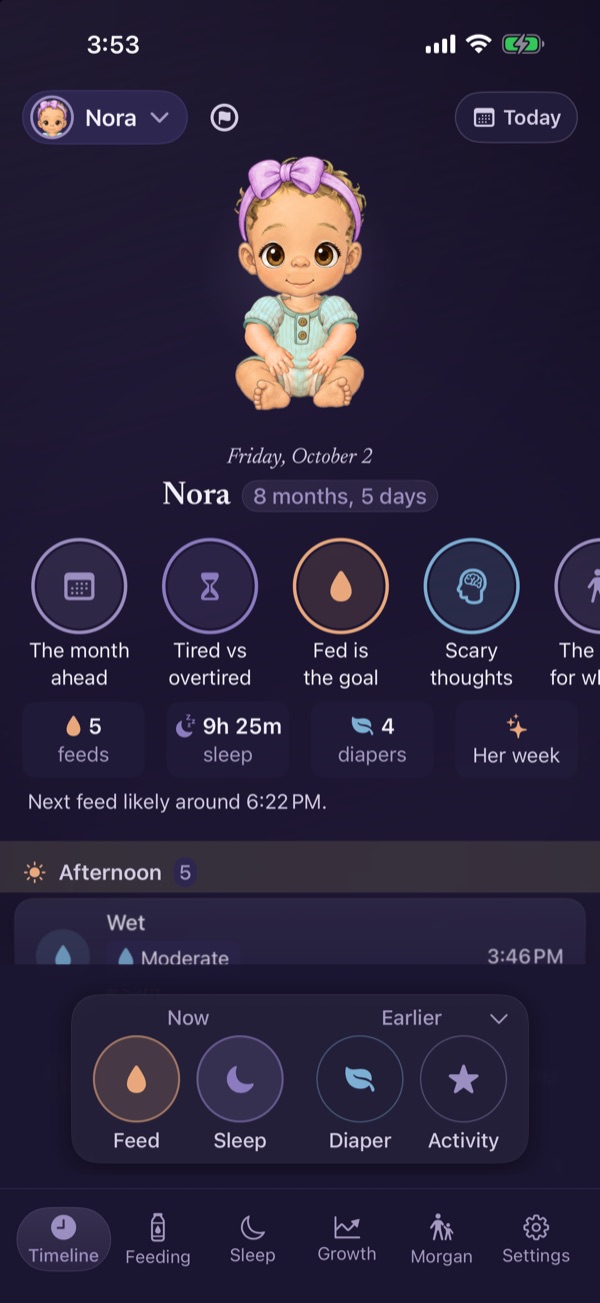
- In Settings, open Sharing, tap Share with caregivers, then Invite someone.
- On Who's joining?, tap Co-parent, Grandparent or Babysitter. For a babysitter, under How long?, choose Today only, Until I end it or Custom. On the same page, check What they'll see and tap Create the invite.
- Let them scan the QR code, or tap Send invite. They need Eva's Log, and both phones need to be signed in to iCloud.
- Co-parent. Logs, edits and sees your baby's timeline.
- Grandparent. Follows the day.
- Babysitter. Logs feeds, sleep and diapers, and sees only the last two days, without medical notes or growth records.
- Your recovery, journal and check-ins, and your cycle and pregnancy records, are never shared.
Each child has one invite link, and the QR code is the same link. Anyone who has it can join that child's timeline, even after the person you meant has joined. The link doesn't carry the role you chose. A newcomer gets the role of the one grandparent or sitter invite still waiting, the sitter view if more than one is waiting, and co-parent otherwise. So send it only to the person you mean, and check Sharing once they join. To remove someone, open Sharing and hold their remove button. Removing someone or canceling a waiting invite doesn't close the link. Only Stop Sharing, under Manage in iCloud on the Sharing screen, closes it, and that ends sharing the child with everyone. If an invite doesn't arrive, check that both phones are signed in to iCloud and online, then write to us.
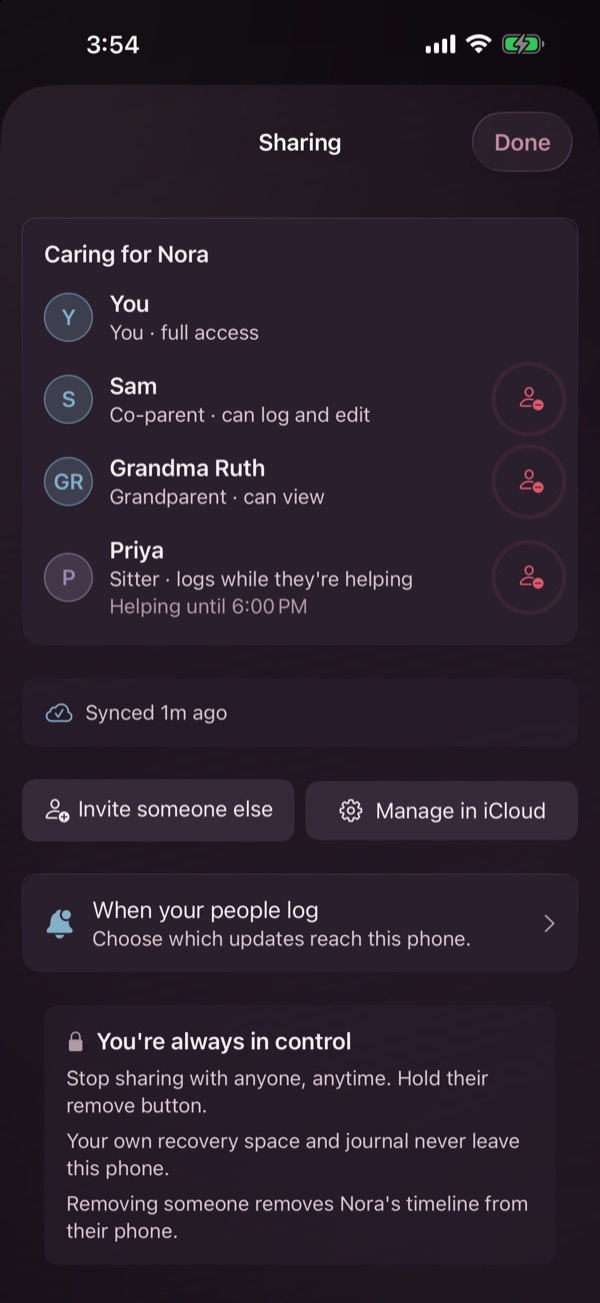
- Touch and hold an empty part of your Home Screen, then open the widget gallery: the + in the corner, or Edit and then Add Widget.
- Search for Eva's Log, choose Today or Log, pick a size and tap Add Widget.
- To change what a widget shows, touch and hold it and tap Edit Widget. To pin it to one child, pick the child under Child. To show your cycle or your week instead, set Show to Your cycle or week.
- Today shows your baby, your week or your cycle day, on the Home Screen and the Lock Screen.
- Log records sleep, a wet or dirty diaper, your period and intimacy without opening the app. The feed and pregnancy buttons open the app on the right screen.
- From Control Center, on iOS 18 and later, start a feed or a pump or log a wet diaper, and Eva's Log opens to do it.
- Lock Screen timers for feeds, sleep, contractions and movement each turn on or off in Settings, under Lock Screen.
- With your child selected, open your own tab at the bottom. It reads You, Mom, Dad, Partner or the name you chose.
- Open Your day, then the Sleep card. The page says what Eva's Log would read. Tap Continue, and Apple Health asks you what to allow.
This is your sleep, not your baby's. Eva's Log reads your sleep and the heart and breathing measures around it, and never writes anything to Apple Health. The card isn't there while you're trying or expecting. To change what it may read, open the Settings app, then Privacy & Security, then Health, then Eva's Log.
Auto night mode is on from the start and softens the app from 10 PM to 5 AM. In Settings, under Night Mode, you can move the start anywhere from 7 PM to 11 PM and the end anywhere from 4 AM to 8 AM.
The same section holds Silence haptics, on from the start so there's no buzz to wake your baby, and Red shift, which warms the colors for feeds in the dark. None of it is behind Premium.
Cycle tracking has no time limit. Baby logging is free for 60 days, counted from your first baby entry, and pregnancy entries for three months, counted from the day you start your first pregnancy record. If a pregnancy ends, the count pauses, and it picks up where it left off with your next pregnancy record rather than starting over. Phones signed in to the same iCloud account share those start dates. A caregiver you invite to share your child doesn't get a new 60 days, because their phone's free time ends no later than your household's.
After that, adding new entries of that kind needs Premium. What you logged stays free to read, chart and delete, and the bleeding log, the contraction timer and the movement counter never need Premium. Premium also covers adding a child with Add a child when you already have one, a new pregnancy record after a pregnancy that ended in a birth, and most exports. Children added during setup, twins and triplets included, and babies added at The baby is here are free. A pregnancy that ended in a loss never makes your next pregnancy record part of Premium, though an earlier birth still does. Take your records to the doctor says which exports are free. Plans and prices are on the Pricing page.
- Restore. In Eva's Log, open Settings, then Subscription, and tap Restore Purchases.
- Manage or cancel. Open the Settings app, tap your name, then Subscriptions, then Eva's Log. Premium lasts to the end of the period you paid for.
- Refunds. Apple handles them, at reportaproblem.apple.com.
- Family Sharing. One subscription covers everyone in your Family group.
- Your household. A parent's subscription also covers everyone who shares your child. A co-parent, a grandparent or a sitter you invite gets Premium on their own phone without buying anything, and each renewal reaches them the next time the paying parent opens Eva's Log.
Both plans renew automatically unless you cancel at least 24 hours before the current period ends.
On the Timeline, tap your child's picture, then Change outfit, then More at the end of a row. Tap a locked outfit to see your child wearing it, then tap the button with its price, such as Unlock for $2.99. You buy it once for your Apple ID, and every child in the app can wear it. Family Sharing covers outfits. Holiday outfits show in the shop only in their season, and you keep any you bought. On a new iPhone, open a locked outfit and tap Restore purchases.
With Premium, Settings, then Data Export, makes:
- Pediatrician Report, a two-week summary for visits
- Appointment Prep, for any range of dates
- First-Year Keepsake, a PDF for you rather than your pediatrician, free while grief mode is on
- Full Data Export, one child's feeds, sleep, diapers, growth and milestones as CSV files
The pregnancy screens make your letters into one document, also with Premium.
The pregnancy record, the worry page and the 12-month cycle record that comes with a cycle notice are always free to export. The worry page comes from Take these to my scan. The pregnancy record is offered when you end it with End this pregnancy record on your own tab, and in its history afterward. Every export is made on your iPhone and goes only where you send it.
There's no account to sign in to, so your records move the way the rest of your iPhone does. Transferring to a new iPhone, or restoring it from a backup, brings them along. Setting the new phone up as new does not.
Turn on backups in the Settings app, under your name, then iCloud, then iCloud Backup. Your journal, recovery, check-ins and your cycle and pregnancy records move only with a transfer or a backup, because sharing never copies them.
To delete one entry, use Delete on its row in the Timeline or in its edit screen. A child's profile can be removed in Settings while another child remains. Deleting and erasing are always free.
If you share, erase while your iPhone is online and signed in to iCloud, because that is when erasing can reach the sharing. To be sure, you can first remove anyone who should lose access, or leave a household you joined, on the Sharing screen.
- In Settings, under Your data, tap Delete all data.
- Read what it removes and what it can't reach, then tap I understand. Continue.
- Type ERASE, tap Proceed, then Erase everything now. It can't be undone.
Erasing wipes Eva's Log on this phone and switches its syncing off, and a paired Apple Watch forgets your child the next time it connects. If your iPhone is online and signed in to iCloud, erasing then tries, once and for about ten seconds, to end the sharing it started, so the phones you invited lose this household, and to leave any household it joined. In a household it leaves, what this phone put there stays: the entries it logged and, if you subscribed, the Premium record it wrote, which keeps covering that household until three days after its end date. Copies of your children's timelines that were never in a share stay in your own iCloud, and you remove them on the iCloud storage page in your iPhone's Settings, under your name, then iCloud. The erase keeps one date, the day you first logged for a baby, so that it doesn't reset your free time. It can't reach backups taken before now, anything you already sent or saved somewhere else, anything your caregivers' phones already copied or saved, a watch that never connects again, or the sharing in iCloud if your iPhone is offline or signed out when you erase.
Quick answers
No. There's nothing to sign up for. Purchases go through your Apple ID, and sharing goes through iCloud.
In Settings, open your baby's profile and enter the gestational age at birth. Under 40 weeks, a Use corrected age switch appears, and growth, milestones and sleep follow it.
Turn it on in Settings, under Anonymous Mode. New entries, except spit-ups and flagged days, then carry a short tag instead of your name, and share cards leave your baby's name off. PDF reports still include it.
It works for formula and food, in bottle feeds, solid foods and your own food log. Only the barcode number is looked up, in Open Food Facts, so a scan needs a connection.
In Settings, under About, Reset active timers clears a feed or sleep stuck in progress. Your logged feeds, sleep and diapers are not touched.
Turn on Lock with Face ID in Settings, under Appointments, and the appointments hub asks for Face ID, Touch ID or your passcode before it opens. Other screens can still show an appointment.
Turn it on in Settings, under Lock Screen. While you're trying or expecting, the widgets then show only the day number or the week. It stays off until you turn it on.

Still need a hand?
Write to support@evaslog.com and tell us what you were trying to do. The terms and the privacy page cover the rest.